

Download Virtual ImagePrinter – Free Virtual Printer for Windows (PDF & Image Conversion)
Virtual ImagePrinter is a lightweight, free, and open-source (GPL) virtual printer driver designed for Windows users who need to convert any document into high-quality image files (JPEG, PNG, BMP) or PDFs. This powerful yet simple tool allows you to "print" any file from any Windows application—be it a Word document, web page, or PDF—and save it directly as an image or PDF without needing physical paper. Perfect for archiving, sharing, or integrating documents into design workflows, Virtual ImagePrinter ensures your original layout and formatting remain intact.
Since its release in 2011, it has gained popularity across India, the United States, and Canada, with over 116,000 downloads and consistent weekly usage. The software is compatible with Windows 2000 and earlier versions, making it ideal for legacy systems. With no installation bloat, minimal system requirements, and zero cost, it's a reliable choice for users seeking a secure, efficient, and straightforward way to digitize documents.
Whether you're a student, professional, or hobbyist, this free tool streamlines document conversion with ease.
Key Features of Virtual ImagePrinter
Virtual ImagePrinter stands out in the crowded field of document conversion tools due to its simplicity, reliability, and robust feature set. One of its most powerful features is its ability to function as a virtual printer driver, seamlessly integrating into any Windows application that supports printing. This means you can "print" from Microsoft Word, Excel, PowerPoint, web browsers like Chrome or Firefox, or even PDF readers like Adobe Acrobat—no matter the source, the output is converted to your desired format. The software supports multiple output formats, including JPEG, PNG, BMP, and PDF, giving users flexibility based on their needs. Whether you're preparing images for a presentation, archiving old documents, or creating digital backups, Virtual ImagePrinter delivers high-quality results.
Another standout feature is its lightweight design. Unlike many bloated software utilities, Virtual ImagePrinter consumes minimal system resources and requires little storage space. This makes it perfect for older or low-spec machines running Windows 2000 or earlier.
The tool also preserves the original layout and typography of documents, ensuring no formatting is lost during conversion. This is crucial for legal documents, invoices, or design mockups where accuracy matters. Additionally, the software is fully open-source under the GPL license, meaning users can inspect, modify, and redistribute the code—offering transparency and trust.
It’s also completely free with no ads, in-app purchases, or hidden costs, making it an ethical and practical choice for both personal and professional use. With no need for complex settings or tutorials, even first-time users can start converting documents within minutes.
Virtual ImagePrinter also supports batch processing through repeated use, allowing users to convert multiple files efficiently. While it doesn’t offer advanced editing tools, its core function—accurate, lossless conversion—is executed flawlessly. The software automatically generates filenames based on the original document, reducing manual organization. For users who prioritize privacy, there’s no data collection or cloud syncing, ensuring your documents stay secure on your local device. Whether you're digitizing paper records, preparing images for social media, or archiving sensitive files, this tool provides a secure, no-frills solution that works exactly as expected.
How to Install and Use Virtual ImagePrinter
Installing Virtual ImagePrinter is a straightforward process, especially for users familiar with Windows printer setup. First, visit the official download page and download the latest version (1.5.5) in English. The file is small in size and does not contain any bundled software or adware, ensuring a secure installation.
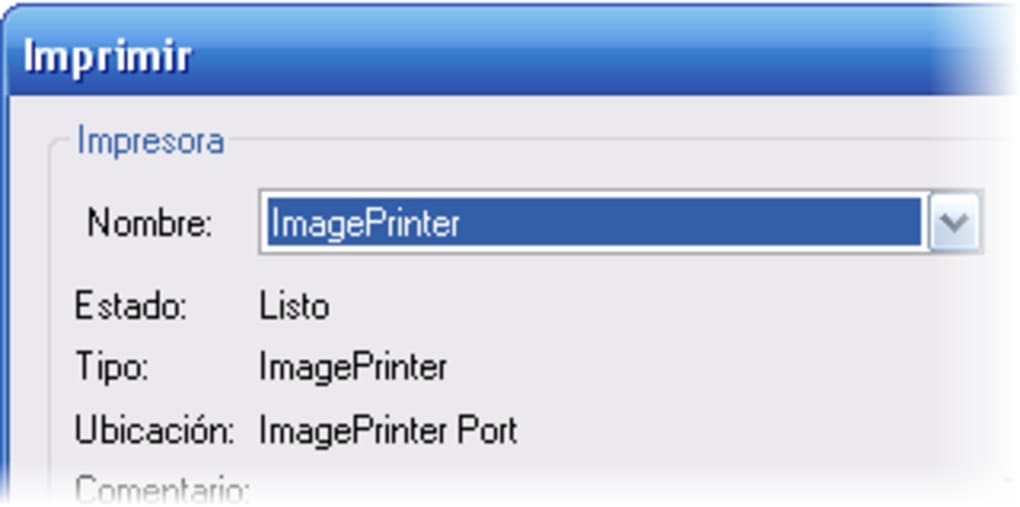
Once downloaded, run the installer and follow the on-screen prompts. The setup wizard will guide you through the process, automatically registering the virtual printer driver in your system. After installation, you’ll notice a new printer named "Virtual ImagePrinter" in your Windows Printers & Scanners settings.
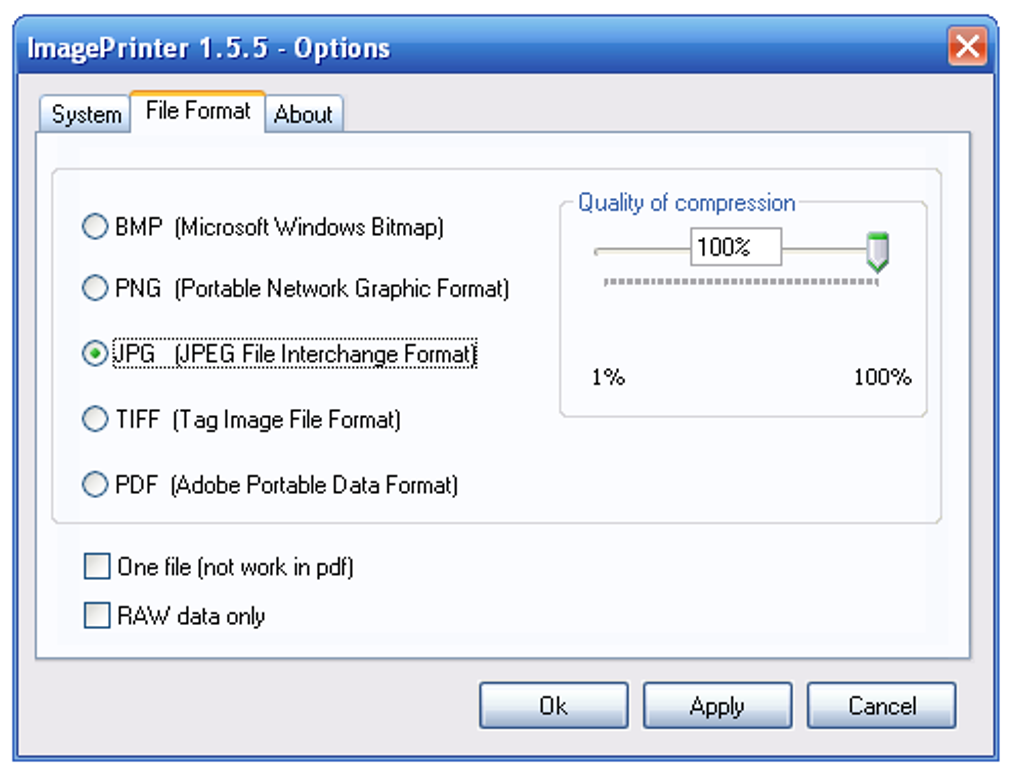
To use the tool, open any document in your preferred application—such as a Word file, web page, or PDF. Go to File > Print, and from the list of printers, select "Virtual ImagePrinter." Click "Print," and a dialog box will appear asking you to choose the output format (JPEG, PNG, BMP, or PDF), set the resolution (standard or high), and specify the save location. You can also adjust image quality settings for JPEG files to balance file size and clarity. Once configured, click "Save," and the document will be converted and saved as a file on your chosen drive. The process is instant and does not require any additional software or plugins.
For frequent users, the tool is designed for quick reuse. Simply repeat the same steps for each document. The software remembers your last-used settings, so you don’t have to reconfigure every time.
If you ever need to remove it, go to Control Panel > Programs and Features, find "Virtual ImagePrinter," and uninstall it safely. The entire process takes less than five minutes and leaves no trace behind. This ease of use, combined with its reliability, makes it ideal for users of all skill levels—from beginners to advanced professionals.
Compatibility and System Requirements
Virtual ImagePrinter is specifically designed for older Windows operating systems, making it a valuable tool for users still running legacy environments. It is fully compatible with Windows 2000, Windows XP, Windows Server 2003, and earlier versions. This compatibility ensures that users with outdated or restricted systems can still benefit from modern document conversion features without upgrading hardware or software. While newer versions of Windows (like Windows 10 or 11) may not officially support the software, many users report successful operation through compatibility mode, though results may vary.
The system requirements are minimal, reflecting the software’s lightweight nature. It requires only a standard x86 processor, 10 MB of free disk space, and 32 MB of RAM—resources that are easily available even on older machines. Because it doesn’t rely on complex dependencies or background services, it runs smoothly without slowing down your system. The software does not require internet access to function, which enhances both performance and security. This makes it ideal for offline environments, government offices, educational institutions, or businesses that prioritize data privacy.
Despite its age, Virtual ImagePrinter remains functional and secure due to its open-source nature and lack of external dependencies. The GPL license allows developers to audit the code, ensuring there are no hidden vulnerabilities. For users in regions with limited access to modern software, such as parts of India, Canada, and the United States, this tool provides a reliable, free alternative to expensive or complex document conversion software. Whether you're converting scanned documents, saving web content, or preparing digital portfolios, Virtual ImagePrinter delivers consistent results across supported platforms.
Pros and Cons of Virtual ImagePrinter
- Pros:
- Free and open-source (GPL) – No cost, no ads, no hidden fees
- Lightweight and fast – Minimal system resource usage
- Supports multiple formats – JPEG, PNG, BMP, and PDF output
- Preserves original layout and formatting
- Works with all Windows applications that support printing
- Secure – No data collection or cloud syncing
- Simple installation and intuitive interface
- Perfect for legacy Windows systems (2000, XP, etc.)
- Cons:
- Not compatible with Windows 10/11 (officially)
- No built-in editing or annotation tools
- Outdated interface – Basic design with no modern UI elements
- Only available in English
- Version hasn’t been updated since 2011
- Limited support for newer document formats (e.g., DOCX, modern PDFs)
Frequently Asked Questions (FAQ)
Is Virtual ImagePrinter free to download and use?
Yes, Virtual ImagePrinter is completely free to download and use. It is distributed under the GNU General Public License (GPL), which allows users to freely use, modify, and redistribute the software without any cost.
Can I use Virtual ImagePrinter on Windows 10 or 11?
While Virtual ImagePrinter was designed for older Windows versions (2000, XP, Server 2003), it may work on Windows 10 or 11 through compatibility mode. However, official support is not available, and results may vary. For best results, use it on supported legacy systems.
What file formats can Virtual ImagePrinter convert to?
The software supports conversion to JPEG, PNG, BMP, and PDF formats. You can choose the output type during the save process, giving you flexibility depending on your use case.
Does Virtual ImagePrinter preserve document formatting?
Yes, Virtual ImagePrinter maintains the original layout, fonts, and formatting of your documents. This ensures that the converted image or PDF looks exactly like the source file.
Is Virtual ImagePrinter safe to download?
Yes, the software is safe to download. It is open-source and does not contain malware, adware, or tracking components. Always download from the official source to ensure authenticity.
Conclusion: A Reliable Free Tool for Document Conversion
Virtual ImagePrinter remains a solid choice for users who need a no-frills, secure, and efficient way to convert documents into image or PDF files. Despite its age and lack of updates, its core functionality is rock-solid, and its lightweight design makes it ideal for older systems. If you're working with legacy Windows environments or simply want a free, reliable virtual printer that doesn't compromise on quality, this tool delivers exactly what it promises.
For those who value open-source transparency, privacy, and cost-free software, Virtual ImagePrinter is a standout option. While it lacks modern features like batch editing or cloud integration, its simplicity is its strength. It does one thing—convert documents to images and PDFs—and it does it well.
Download Virtual ImagePrinter today and simplify your document conversion workflow. Whether you're archiving, sharing, or digitizing files, this free tool is a trusted companion for Windows users worldwide.







